Updated 2026-10-25
Testing security tools and analyzing malware requires an isolated environment disconnected from external networks. This guide uses the Hyper-V test lab operated by mamoruhacker as a practical model. It covers architectural design principles, PowerShell setup commands, operational rules, and legal boundaries.
- Why virtual switches must be separated by purpose, and how packet isolation works
- Step-by-step PowerShell commands to configure Hyper-V virtual switches, NAT networks, and virtual machines
- Official download sources and setup procedures for analysis operating systems (FLARE-VM and REMnux)
- Operational rules and checkpoint strategies to prevent host contamination during analysis
- Legal boundaries and prohibited actions under cybercrime legislation
Why You Need an Isolated Lab
Running penetration testing tools or malware samples on a daily-use computer or organizational network creates severe risks. Tools can inadvertently transmit packets to external hosts, and malware can propagate to other devices on the same local network.
An isolated lab lets you:
- Limit the blast radius: Keep traffic between virtual machines that you control.
- Roll back: Use checkpoints (snapshots) to return a machine to its state before a test.
- Watch the traffic: Capture traffic inside the isolated network with tools such as Wireshark.
Architecture of the Operator’s Lab
The host machine runs Windows 11 Pro with 64 GB of RAM, using Hyper-V as the hypervisor. WSL2 (Kali Linux) runs on the host to serve as a central workbench for tool execution, sample storage, and audit log analysis.
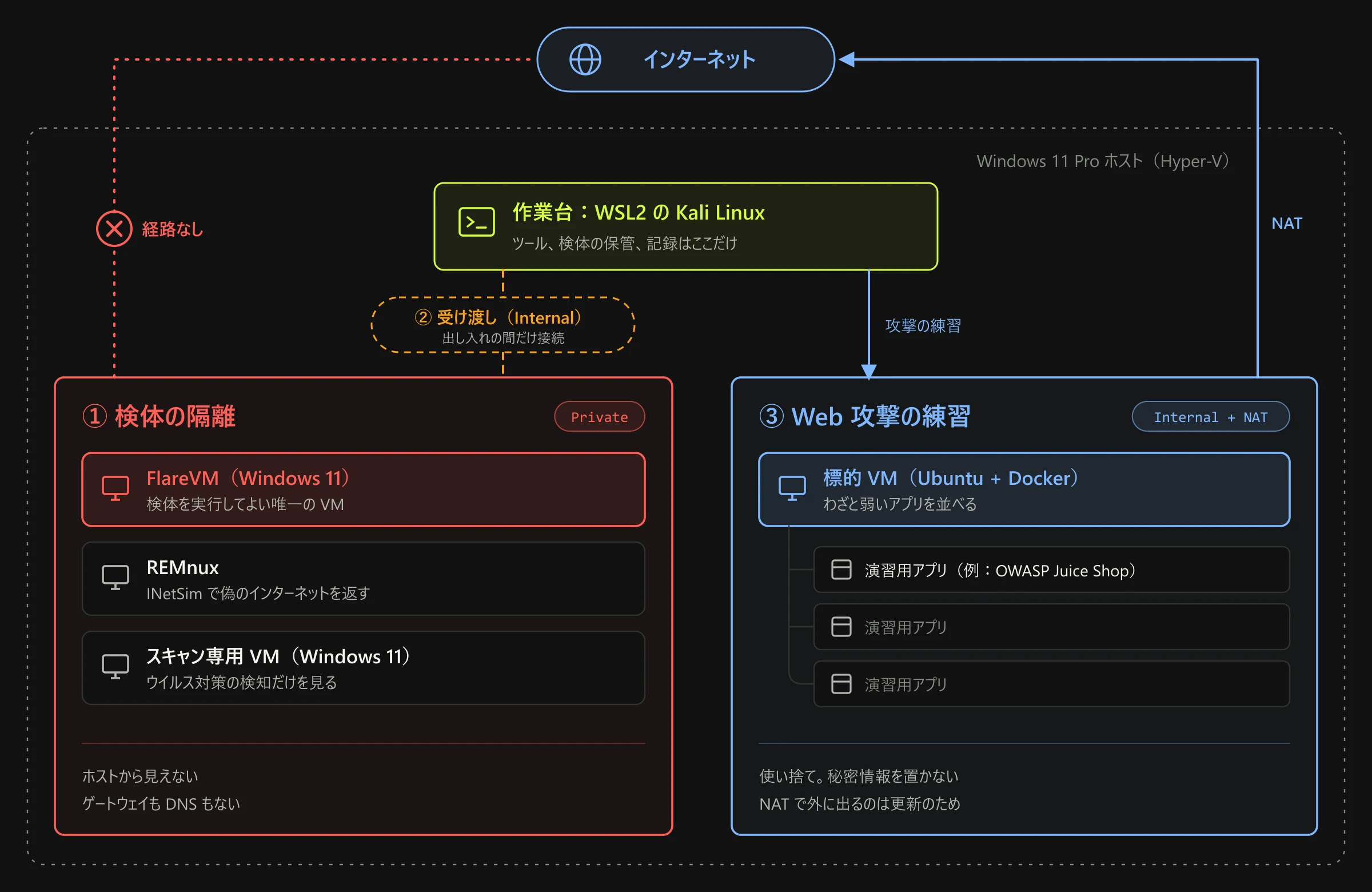
The lab uses three virtual switches, one for each purpose:
| Purpose | Switch type | Connected virtual machines | Host visibility | Internet access |
|---|---|---|---|---|
| Sample isolation | Private | FlareVM (Windows 11 + FLARE-VM), REMnux (INetSim service simulator), Scan-only VM | Invisible | None (no default gateway, no DNS) |
| File transfer | Internal | Attached temporarily only when transferring samples or retrieving logs | Visible | None |
| Web attack practice | Internal + NAT | Target VM (Ubuntu 24.04 + Docker, OWASP Juice Shop, etc.) | Visible | Allowed via NAT |
This is one example from the operator’s environment, not a guarantee of safety. If a switch is miswired or a setting is missed, traffic can leave the lab. Repeat the checks in Step 7 every time you change the setup.
Virtual Machine Specifications
The table below outlines the core hardware parameters assigned to each VM:
| Virtual machine | Hyper-V generation | vCPU | RAM | Disk | Notes |
|---|---|---|---|---|---|
| FlareVM | Generation 2 | 4 | 6 GB | 100 GB | vTPM and Secure Boot enabled. The only VM permitted to execute samples |
| REMnux | Generation 1 | 2 | 3 GB | 100 GB | Converted BIOS-boot VHDX. Provides simulated internet services |
| Target VM | Generation 1 | 2 | 4 GB | 40 GB | Disposable practice environment; stores no confidential data |
Prerequisites
Before beginning setup, verify host system requirements and acquire official software images.
Host Hardware and OS Requirements
Based on Microsoft Learn documentation, running Hyper-V requires:
- Operating System: Windows 11 Pro or Enterprise (64-bit). Windows Home edition does not support Hyper-V.
- Processor: 64-bit CPU with Second Level Address Translation (SLAT).
- RAM: Minimum 4 GB. In the operator’s setup, running FlareVM (6 GB) and REMnux (3 GB) together uses 9 GB for the VMs alone.
- Virtualization Support: Hardware virtualization (Intel VT-x or AMD-V) enabled in BIOS/UEFI.
Official Software Sources
To prevent tampering and supply-chain compromise, download all components exclusively from official repositories:
| Software | Description | Official source |
|---|---|---|
| Windows 11 Enterprise Evaluation | Base OS for analysis (90-day evaluation period, no product key required) | Microsoft Evaluation Center |
| FLARE-VM | Automated Windows malware analysis distribution by Mandiant (Apache 2.0) | GitHub: mandiant/flare-vm |
| REMnux | Linux toolkit for reverse engineering and network interaction analysis | REMnux Documentation |
| Kali Linux | Penetration testing and security research platform (WSL2 or VM image) | Kali Linux Official Site |
Step-by-Step Setup Instructions
Open PowerShell with administrative privileges and follow these steps to construct the lab environment.
Step 1: Enable the Hyper-V Feature
Run the following command to enable the Hyper-V hypervisor and management tools:
Enable-WindowsOptionalFeature -Online -FeatureName Microsoft-Hyper-V -AllRestart your computer when prompted.
- Verification: After restarting, run
Get-WindowsOptionalFeature -Online -FeatureName Microsoft-Hyper-Vin PowerShell. Confirm thatState : Enabledis displayed.
Step 2: Create Virtual Switches
Hyper-V provides three virtual switch types. Choosing the correct switch is vital to lab security.
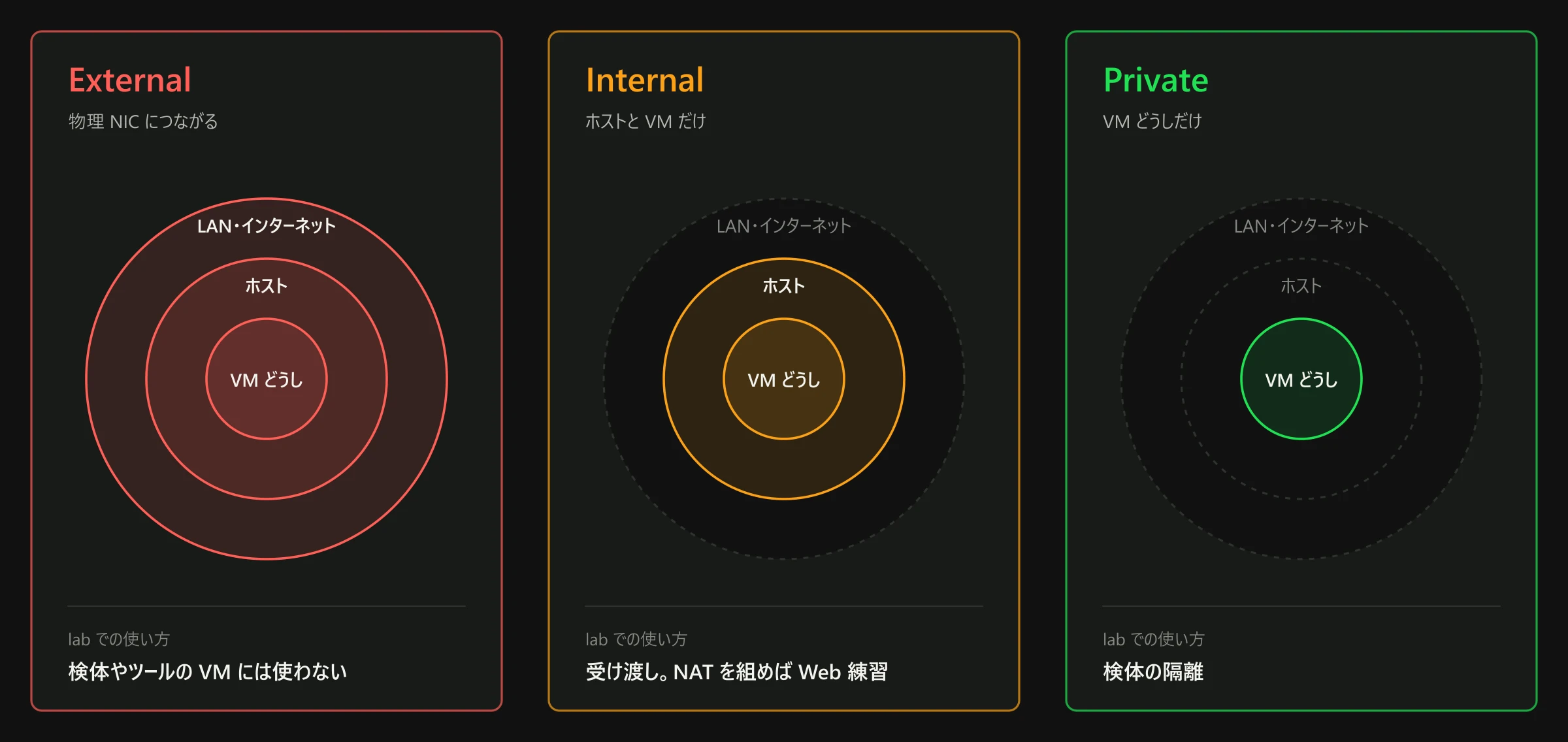
Create the Private switch dedicated to sample isolation:
New-VMSwitch -Name "LabPriv" -SwitchType PrivateFor web application security testing, configure an Internal switch paired with a NAT network:
# 1. Create an Internal switch
New-VMSwitch -Name "LabNat" -SwitchType Internal

# 2. Identify the interface index and assign a gateway IP
Get-NetAdapter "vEthernet (LabNat)" | Select-Object ifIndex, Name
New-NetIPAddress -IPAddress 192.168.100.1 -PrefixLength 24 -InterfaceIndex <ifIndex>

# 3. Create the NAT gateway (limited to one NAT network per host)
New-NetNat -Name "LabNatNetwork" -InternalIPInterfaceAddressPrefix 192.168.100.0/24- Verification: Run
Get-VMSwitchand verify that bothLabPriv(Private) andLabNat(Internal) appear in the output.
Step 3: Create the Analysis Virtual Machine
Create a Generation 2 virtual machine attached to the LabPriv switch:
New-VM -Name "FlareVM" -Generation 2 -MemoryStartupBytes 6GB -NewVHDPath "D:\Hyper-V\Virtual Hard Disks\FlareVM.vhdx" -NewVHDSizeBytes 100GB -SwitchName "LabPriv"Attach the downloaded Windows 11 Enterprise evaluation ISO and set the boot order:
Add-VMDvdDrive -VMName "FlareVM" -Path "D:\ISOs\Win11_Enterprise_Eval.iso"
Set-VMFirmware -VMName "FlareVM" -FirstBootDevice (Get-VMDvdDrive -VMName "FlareVM")- Verification: Run
Get-VM -Name "FlareVM"and verify the assigned memory and virtual switch configuration.
Step 4: Install Windows and Take an Initial Checkpoint
Start the VM and complete the initial Windows setup:
-
Power on the VM and follow the installation wizard.
-
During the initial out-of-box experience (OOBE), set up a local user account. Do not sign in with a cloud or corporate Microsoft account.
-
Once booted into the desktop, disable automatic checkpoints and switch the checkpoint architecture to Standard checkpoints so system memory can be preserved:
# Disable automatic checkpoints
Set-VM -Name "FlareVM" -AutomaticCheckpointsEnabled $false

# Configure standard checkpoints
Set-VM -Name "FlareVM" -CheckpointType Standard

# Take the clean baseline checkpoint
Checkpoint-VM -Name "FlareVM" -SnapshotName "win-clean"
- Verification: Run
Get-VMSnapshot -VMName "FlareVM"and verify thatwin-cleanexists.
Step 5: Attach a Temporary NIC and Install FLARE-VM
Because the FLARE-VM installation package downloads tools over the internet, connect a temporary network adapter to the NAT switch during the installation process only.
-
Add a temporary network adapter:
Add-VMNetworkAdapter -VMName "FlareVM" -SwitchName "LabNat" -Name "TempInstallNIC" -
Inside the guest OS, disable Windows Defender real-time protection and tamper protection via Group Policy or Windows Security settings as documented in the FLARE-VM README.
-
Open PowerShell as Administrator inside the guest and run the official installer:
(New-Object net.webclient).DownloadFile('https://raw.githubusercontent.com/mandiant/flare-vm/main/install.ps1', "$env:temp\install.ps1") Unblock-File "$env:temp\install.ps1" Set-ExecutionPolicy Unrestricted -Force & "$env:temp\install.ps1" -
Once installation completes and the VM restarts, immediately remove the temporary NIC to eliminate all outbound network routes:
Remove-VMNetworkAdapter -VMName "FlareVM" -Name "TempInstallNIC" -
In an elevated PowerShell inside the guest (FlareVM), give the private-switch adapter a static IP and point DNS at REMnux. Do not set a gateway. The addresses are examples.
New-NetIPAddress -InterfaceAlias "Ethernet" -IPAddress 10.10.10.20 -PrefixLength 24 Set-DnsClientServerAddress -InterfaceAlias "Ethernet" -ServerAddresses 10.10.10.1 -
Create the primary analysis rollback checkpoint:
Checkpoint-VM -Name "FlareVM" -SnapshotName "flare-clean"
- Verification: Inside the guest, run
Get-NetAdapter. Confirm thatTempInstallNICis absent and only the private network adapter remains connected.
Step 6: Import REMnux and Configure INetSim
Import REMnux by converting the official virtual appliance into a Hyper-V VHDX:
-
Extract the OVA archive with
tarand decompress.vmdk.gzwithgunzip. -
Convert the virtual disk using
qemu-img(or StarWind V2V Converter):qemu-img convert -p -O vhdx -o subformat=dynamic remnux-vmdk.vmdk remnux.vhdx -
Create a Generation 1 virtual machine in Hyper-V (the converted disk uses legacy BIOS boot) and attach it to the
LabPrivswitch. -
Boot REMnux and immediately change the default user credentials. The private switch has no DHCP, so set a static IP (for example,
10.10.10.1/24) with netplan. -
Edit
/etc/inetsim/inetsim.confto bind listener services to the static Ethernet interface IP instead of loopback (127.0.0.1):service_bind_address 10.10.10.1 dns_default_ip 10.10.10.1 -
Start INetSim:
sudo inetsim
- Verification: From FlareVM, query
nslookup example.com 10.10.10.1. Verify that INetSim returns its simulated IP address (10.10.10.1).
Step 7: Verify Network Isolation
Before placing any malware sample into the environment, rigorously test isolation integrity:
-
Outbound leakage test: From FlareVM, attempt network connections to public addresses and external domain names:
Test-NetConnection -ComputerName 8.8.8.8 -InformationLevel Detailed
Invoke-WebRequest -Uri "https://www.google.com" -TimeoutSec 5
Confirm that
Test-NetConnectionreportsPingSucceeded : Falseand thatInvoke-WebRequestends with an error. If either succeeds, a route to the outside still exists. Fix the wiring before you bring in any sample. -
Internal loopback test: Confirm that HTTP requests to
10.10.10.1successfully reach INetSim’s default response page.
Operational Rules for Safe Analysis
Physical and virtual isolation must be backed by disciplined operational habits to prevent accidental contamination.
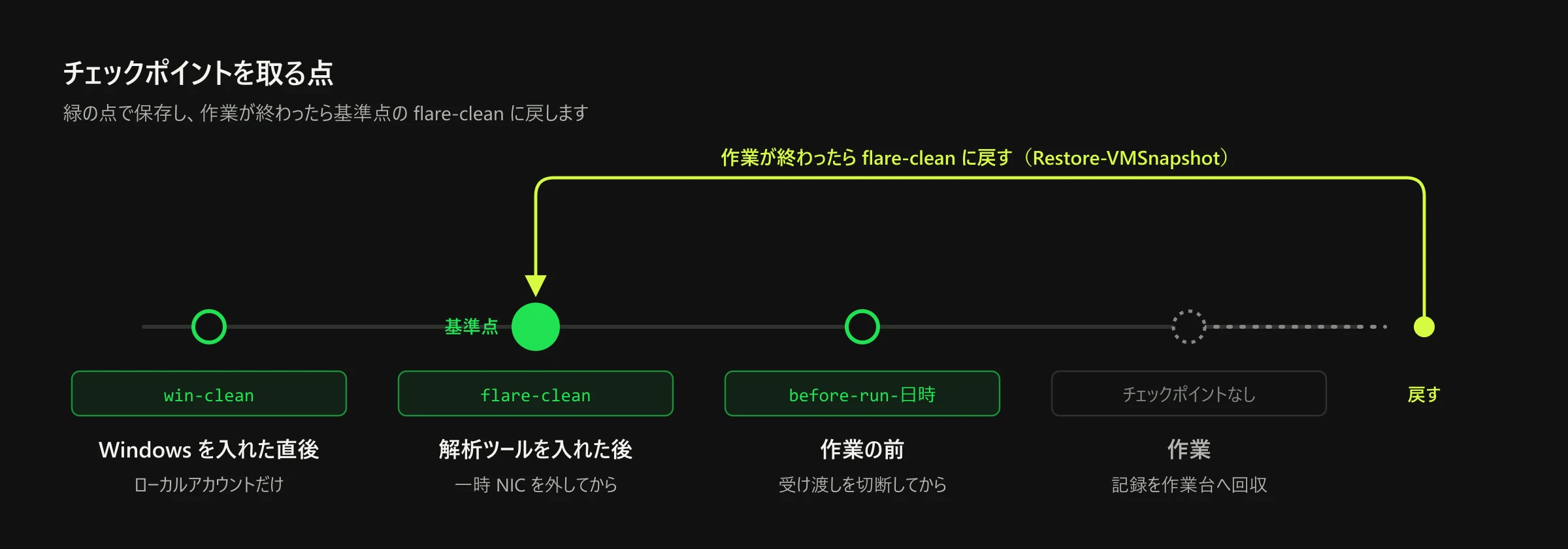
Ten Operational Rules Followed by the Operator
- Execute samples on FlareVM only: Never execute malware on other VMs (REMnux or host workstations).
- Never maintain permanent external NICs: Analysis VMs must not have standing internet access. Temporary NICs are connected only during updates and removed immediately after.
- Sever transfer networks prior to execution: Ensure all file-transfer connections are disconnected before running any sample.
- Disable Enhanced Session Mode: Hyper-V Enhanced Session Mode uses RDP and allows clipboard and drive redirection. To prevent malware from traversing these channels, operate via Basic Session or PowerShell Direct. Disable Enhanced Session Mode host-wide with:
Set-VMHost -EnableEnhancedSessionMode $false - Turn off IPv6 and IP forwarding on sample VMs: To prevent unexpected traffic from IPv6 auto-configuration, the operator unbinds IPv6 on the sample-related VMs and also turns off IP forwarding on REMnux. Note that Microsoft does not recommend unbinding IPv6 on Windows in general; it suggests preferring IPv4 with the registry value
DisabledComponents = 0x20instead. Unbinding it is the operator’s choice for isolated sample VMs only. - Automate cable and switch verification: Run verification scripts before starting VMs to confirm no analysis VM is connected to an External or NAT switch.
- Never store live samples on host NTFS volumes: Host antivirus software (Microsoft Defender) can detect and quarantine samples, breaking research consistency. Store samples exclusively within WSL2 virtual disk files.
- Collect evidence before rolling back: Reverting to a checkpoint wipes all ephemeral files and memory state. Safely export memory dumps, PCAP captures, and event logs via PowerShell Direct before initiating a rollback.
- Disable host-guest shared folders: Avoid shared folder features that provide potential lateral movement paths for ransomware or worms.
- Maintain strictly local accounts: Never log in with cloud identities or personal credentials inside the analysis machines.
Alternatives for Non-Hyper-V Users
If you run Windows Home edition, macOS, or Linux, the desktop hypervisors below provide equivalent network isolation capabilities:
| Software | Supported host platforms | License and pricing | Isolated network setting |
|---|---|---|---|
| Oracle VirtualBox | Windows, macOS (Intel / Apple Silicon), Linux | Core software is GPL v3 (Free). Extension Pack free for personal/eval use (PUEL) | “Internal Network” or “Host-Only” |
| VMware Workstation Pro / Fusion Pro | Workstation: Windows / Linux Fusion: macOS |
Free for all commercial and personal users as of November 11, 2024 | “Host-only” (VMnet1, etc.) |
In VirtualBox, configuring an “Internal Network” confines packet delivery strictly to designated virtual machines, keeping traffic completely hidden even from the host OS. Never attach test VMs to a “Bridged” adapter, as bridged adapters place VM network traffic directly onto your physical LAN.
Legal Boundaries and Compliance
Security research must always operate within established legal boundaries.
Unauthorized Computer Access Act
Under Japan’s Act on the Prohibition of Unauthorized Computer Access (Act No. 128 of 1999), unauthorized entry into computer systems protected by access controls is strictly prohibited:
| Article | Summary of provision | Penalties |
|---|---|---|
| Article 2, Para. 4 | Definition of unauthorized access (inputting another person’s credentials or bypass commands without authorization) | — |
| Article 3 | Prohibition of unauthorized computer access | Article 11: Imprisonment with work for up to 3 years or fine up to 1,000,000 yen |
| Article 4 | Prohibition of obtaining another person’s identification codes for unauthorized access | Article 12: Imprisonment with work for up to 1 year or fine up to 500,000 yen |
| Article 5 | Prohibition of providing another person’s identification codes to third parties | Article 13: Fine up to 300,000 yen (Article 12 if intent is known) |
| Article 6 | Prohibition of unauthorized storage of obtained identification codes | Article 12: Imprisonment with work for up to 1 year or fine up to 500,000 yen |
| Article 7 | Prohibition of phishing and deceptive credential solicitation | Article 12: Imprisonment with work for up to 1 year or fine up to 500,000 yen |
Penal Code Provisions (Creation of Unauthorized Computer Commands)
Handling malware and security testing tools is regulated under the Penal Code:
- Article 168-2 (Creation of Unauthorized Computer Commands): Creating, providing, or executing computer viruses or unauthorized commands without legitimate cause is punishable by imprisonment for up to 3 years or a fine up to 500,000 yen.
- Article 168-3 (Acquisition of Unauthorized Computer Commands): Acquiring or storing unauthorized computer commands without legitimate cause is punishable by imprisonment for up to 2 years or a fine up to 300,000 yen.
- Article 234-2 (Obstruction of Business by Computer Damage): Damaging computers used for business operations or feeding them unauthorized commands to cause disruption carries up to 5 years imprisonment or a fine up to 1,000,000 yen.
Permitted Research Boundaries
- Virtual machines in your own fully isolated private lab
- Target systems covered by explicit written authorization (contracts specifying testing scope, time windows, and authorized testing techniques)
Testing exploit techniques against third-party systems without prior written authorization constitutes a serious crime, even if no damage occurs. Never distribute or leak malware samples outside your private lab.
Primary Sources and Verification Date
All technical claims, product licensing terms, and regulatory provisions were verified on October 25, 2026:
- Install Hyper-V on Windows(Microsoft Learn)
- New-VMSwitch(Microsoft Learn PowerShell Module)
- Set up a Hyper-V NAT network(Microsoft Learn)
- New-VM(Microsoft Learn PowerShell Module)
- Using checkpoints to revert virtual machines to a previous state(Microsoft Learn)
- Share devices with your Hyper-V virtual machine(Microsoft Learn)
- Manage Windows virtual machines with PowerShell Direct(Microsoft Learn)
- Guidance for configuring IPv6 in Windows for advanced users(Microsoft Learn)
- Windows 11 Enterprise Evaluation(Microsoft Evaluation Center)
- mandiant/flare-vm(GitHub)
- Get the REMnux Virtual Appliance(REMnux Documentation)
- INetSim Official Documentation
- VMware Desktop Hypervisor Pro Apps now Free for All Users(VMware Official Blog, 2024-11-11)
- Oracle VM VirtualBox User Manual: Virtual Networking
- Act on the Prohibition of Unauthorized Computer Access(e-Gov Legal Database)
- Penal Code of Japan(e-Gov Legal Database)
Next Steps
- OWASP Juice Shop: Deploy an intentionally vulnerable web application on your target VM to practice vulnerability assessment safely
- Nmap: Practice network mapping and port discovery against targets within your private lab
- Wireshark: Inspect and analyze protocol traffic inside your isolated virtual network